
Troubleshooting Powershell
This topic outlines troubleshooting steps for issues encountered when scheduling the Powershell Script for ConnectActive.
Step 1
Run the "Run ConnectActive.bat" file directly from the Windows Explorer or from a Command Prompt to ensure the script can execute successfully when run manually.
If you receive any "Unable to connect to remote server", update your Windows Firewall Rules to explicitly allow Powershell (%SystemRoot%\system32\WindowsPowerShell\v1.0\powershell.exe) to have access thru the Windows Firewall.
If the script runs but you receive Error Messages, take a screenshot of the failed script and forward it to support@nilear.com.
Step 2
Manually run the Scheduled Task configured for ConnectActive marking the time you began the task execution. Open the Windows Event Viewer -> Windows Logs -> Application and look for Source ConnectActive entries for the same time you began the task execution. There should be 11 entries for the execution, all Level Information.
If any entries are Level Error, take a screenshot of the error messages and forward them to support@nilear.com
If no entries were found for Source ConnectActive at the time of execution, you have not configured the task correctly to run the BAT file. Please review the next step for recommended Scheduled Task settings.
Step 3
Recommended Scheduled Task Settings
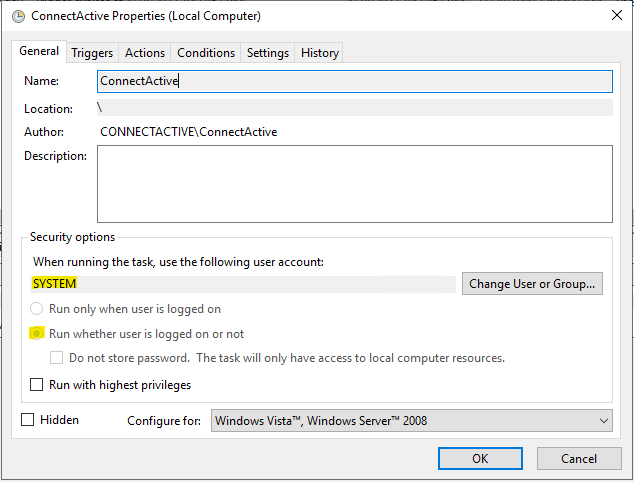
Ensure the "Run whether users is logged on or not" is checked. This will automatically be enabled and greyed out if you choose "SYSTEM" as the user account to use when running the task.
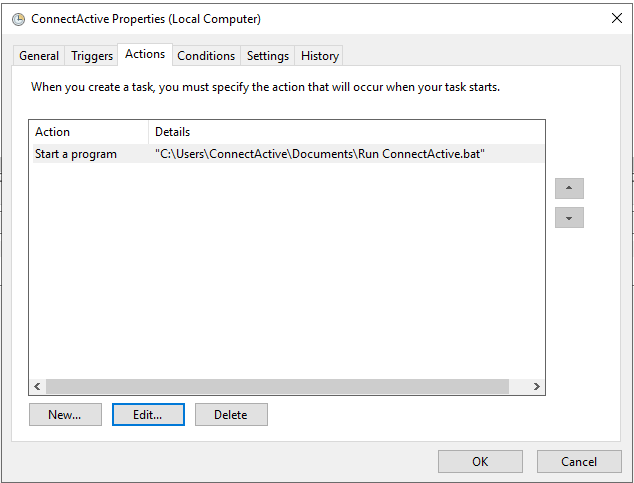
Ensure the Action is pointed to a valid location of the "Run ConnectActive.bat" file and that the file is not stored in a restricted directory, such as the root C:\ or C:\Windows. Actual location of downloaded "Run ConnectActive.bat" file will be dependent on where you downloaded and unzipped the files.
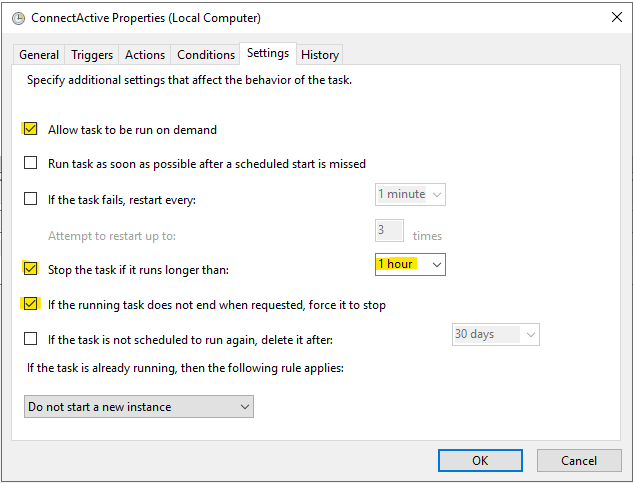
Ensure "Allow task to be run on demand", "Stop the task if it runs longer than:", and "If the running task does not end when requested, force it to stop" are checked. Also, ensure the "Stop the task if it runs longer than:" drop-down is set to "1 hour".
Step 4
Set the trigger time to execute sometime in the next 3 minutes and sign off of all sessions to the server. We want to verify if the Scheduled Task will properly execute without any user sessions active. After five minutes, log back into the server and proceed to the next step.
Step 5
Open the Windows Event Viewer -> Windows Logs -> Application and look for Source ConnectActive entries for the same time you scheduled the task to trigger execution. There should be 11 entries for the execution, all Level Information.
If the 11 Level Information entries were found in the Event Viewer, your Scheduled Task is configured correctly. Please update the Trigger time to when you wish the script to run Daily.
If any entries are Level Error, take a screenshot of the error messages and forward them to support@nilear.com.
If no entries were found for Source ConnectActive at the time of execution, proceed to the next step.
Step 6
Rather than running the BAT file, we are going to update the Action for the Scheduled Task to run the Powershell Script directly instead.
Edit the Action for the Schedule Tasks and set the "Program/script:" field to "C:\Windows\System32\WindowsPowerShell\v1.0\powershell.exe" (location may differ depending on server environment) and set the "Add arguments" field to "-ExecutionPolicy Bypass -File C:\Users\ConnectActive\Documents\Powershell.ps1" (actual location of downloaded Powershell.ps1 file will be dependent on where you downloaded and unzipped the files.)

Now that the Schedule Task has been modified, start again from Step 2 above to ensure the updated Schedule Task has been properly configured to execute daily.
Step 7
If you still cannot get the Scheduled Task to execute automatically, you may have to depend on a third-party scheduling tool, such as your RMM.